Ergonomics and Comfort at a Home Desk
A home desk gets used differently from an office one. Sessions run longer, breaks are looser, and the furniture was rarely chosen for posture. None of that requires expensive equipment to fix. Comfort at a desk comes down to a handful of relationships between your body, the chair, the surface, and the screen — and most of them can be adjusted with what you already own.

The neutral seated posture
The reference position that most guidance describes is unglamorous and easy to remember. Sitting back in the chair, you want:
- Feet flat on the floor, or on a footrest if they dangle.
- Knees roughly level with the hips, thighs supported by the seat.
- Lower back supported by the chair's backrest.
- Forearms approximately level with the desk, elbows near the body.
- Shoulders relaxed, not lifted toward the ears.
The Canadian Centre for Occupational Health and Safety frames this as keeping joints in their natural mid-range rather than at the extremes of their movement. When discomfort shows up, it usually means one joint has drifted to an extreme — wrists bent up to reach a high desk, neck craned down to a low laptop.
Three adjustments, in order
Working through these in sequence solves most home-desk discomfort.
1. Chair height to the desk
Set the chair so your forearms meet the desk roughly level. If the desk is fixed and too high, raise the chair and add a footrest; a sturdy box works. If feet still don't reach, that footrest is doing real work, not a luxury.
2. Screen height to your eyes
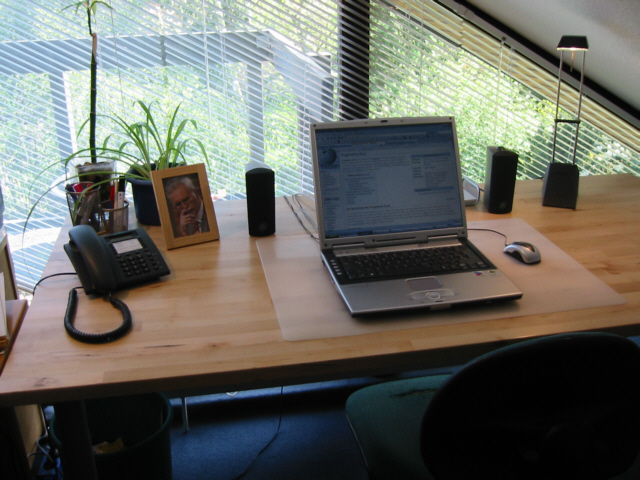
The top of the screen should sit near eye level so your gaze falls slightly downward and your neck stays neutral. A laptop almost always sits too low for this. Raising it on a stand or a stack of books and adding a separate keyboard is the single most effective change for laptop-based desks.
3. Keyboard and mouse placement
Keep the keyboard close enough that your elbows stay near your sides and your wrists stay straight rather than bent up or down. The mouse sits at the same height, beside the keyboard, not reached for across a gap.
Sit as you normally do and freeze. Are your wrists flat? Is your chin level rather than dropped? Are your shoulders down? Each "no" points to one of the three adjustments above.
Movement matters more than the perfect chair
Even a well-set posture is not meant to be held for hours unbroken. General workplace guidance consistently favours changing position regularly over sitting perfectly still. Standing to take a call, stepping away between tasks, and shifting how you sit all spread the load that any single posture concentrates.
This is the practical case for a height-adjustable or standing desk: not standing all day, but having an easy way to alternate. Where a full standing desk isn't an option, a desktop riser or simply relocating some tasks to a kitchen counter accomplishes the same alternation.
Lighting and the eyes
Comfort isn't only musculoskeletal. Screen glare and a dim room make you lean in and strain, which pulls posture out of line. That overlap is why the desk environment gets its own discussion in Light & Air Quality. Getting the screen position right (above) and the lighting right (there) tend to fix each other's symptoms.
Putting it together
If you change one thing, raise the screen to eye level and add a separate keyboard. If you change two, add the footrest that lets the chair sit at the right height. Beyond that, build in movement. These steps assume you already have a workable spot and surface; if not, start with Setting Up a Home Desk.